Overview: Dashboard Logins vs API Execution
Securing your Alpaca account requires understanding two distinct access methods:
- Dashboard Access: Used for managing account profile settings, viewing portfolio analytics, retrieving API credentials, and managing banking rails.
- Trading API Execution: Used by trading scripts and autonomous bots to submit orders, stream market data, and query account state.
Multi-Factor Authentication (MFA) protects your web dashboard. Enabling MFA ensures that even if your dashboard login email and password are compromised in a credential-stuffing or phishing attack, an unauthorized party cannot perform critical actions without the MFA code requested during an unrecognized-device login.
Critical actions that require MFA include:
- Linking bank accounts
- Initiating deposits or withdrawals
- Viewing funding and transfer history
- Executing ACATS transfers
- Generating or regenerating live API keys
- Authorizing third-party apps
- Managing crypto wallet whitelists and executing crypto transfers
For all accounts created after June 2024, enabling MFA is a prerequisite before funding and trading on a live brokerage account. Additionally, MFA is required for managing cryptocurrency wallet whitelists.
| Scenario | MFA Status | Notes |
|---|---|---|
| Paper Trading Account | Optional | Encouraged for account security, but not required. |
| Live Brokerage Account (Post-June 2024 accounts) | Optional | While you can open a live brokerage account without MFA set up. However, MFA must be enabled to deposit, trade, and withdraw funds from your live account. It must also be set up to mint API keys and connect to third party apps. |
| Crypto Wallet Whitelist Management | Mandatory | Required to add or remove wallet addresses. |
| Alpaca Authentication Architecture |
|
Access Layer: Alpaca Web Dashboard
|
↓
|
Access Layer: Alpaca Trading API
|
Core Security Boundary: Dashboard MFA vs. Trading API
A common misconception among developers is that enabling Dashboard MFA will interrupt active Python trading scripts or autonomous background bots.
MFA applies strictly to interactive web logins on the Alpaca Dashboard. Programmatic API endpoints do not challenge for interactive TOTP tokens.
Authentication Segregation Table
Note: A 401 error indicates invalid API credentials, not an MFA failure.
Key Isolation Rule
Because API keys authenticate directly to the Trading API without triggering MFA challenges, API secret keys must be treated with the same confidentiality as a master password. For guidelines on managing API key lifecycles, refer to our companion guide: API Key Security Best Practices for Alpaca Builders.
Supported Authentication Factors
Alpaca enforces standard Time-based One-Time Password (TOTP) protocols (RFC 6238) for multi-factor authentication.
Supported TOTP Solutions
- Standalone Authenticator Apps: Google Authenticator, Microsoft Authenticator, 2FAS, Aegis.
- Integrated Password Manager TOTP: 1Password, Bitwarden, Dashlane, Apple Passwords.
Legacy and Unsupported Factors
- SMS and Email Verification: Legacy accounts may retain legacy SMS verification, but SMS is not supported for new MFA configurations due to SIM-swap vulnerabilities.
- Hardware Security Keys (FIDO2/WebAuthn): Physical security keys (such as YubiKeys) are not natively integrated into the web dashboard at this time; use an authenticator app or password manager capable of storing TOTP secrets.
Step-by-Step MFA Configuration Guide
Follow these steps to configure TOTP MFA on your Alpaca account:
Step 1: Prepare Your Authenticator Device
Ensure you have an authenticator app or TOTP-compatible password manager installed on your mobile device or workstation.
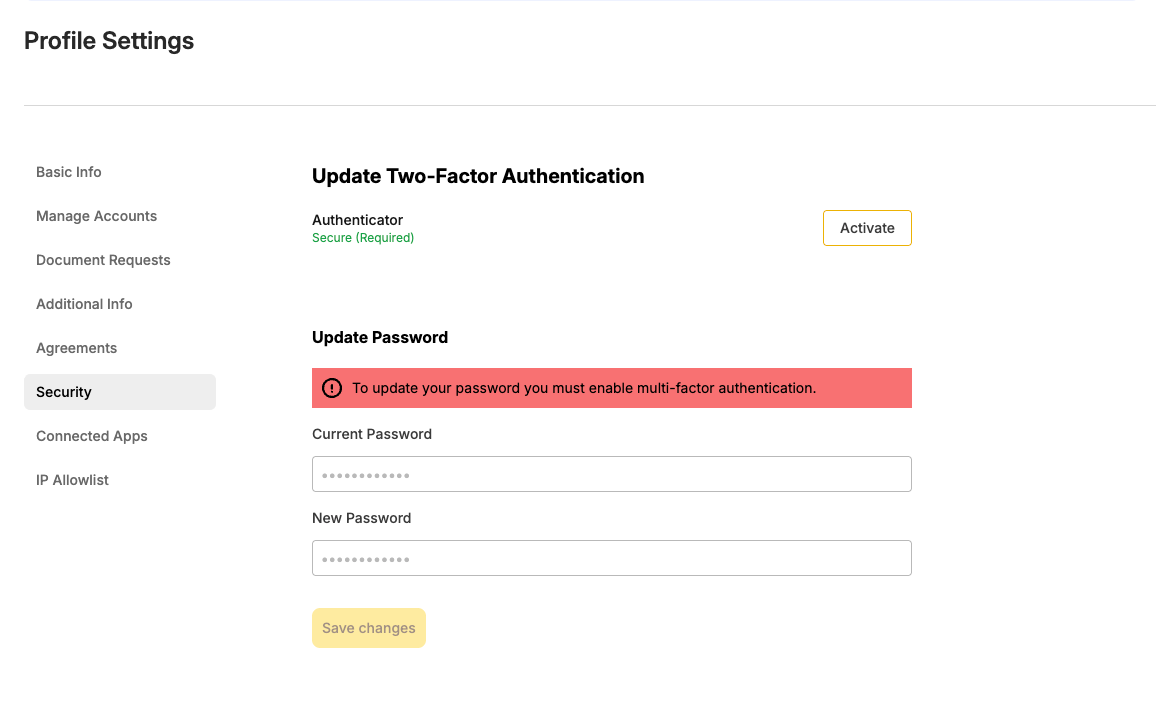
Step 2: Navigate to Account Security Settings
- Log in to the Alpaca Dashboard.
- In the user navigation menu, open the Security Profile page at Profile -> Security.
- Locate the Two-Factor Authentication section.
Step 3: Enroll Your Authenticator App
- Click the Activate button.
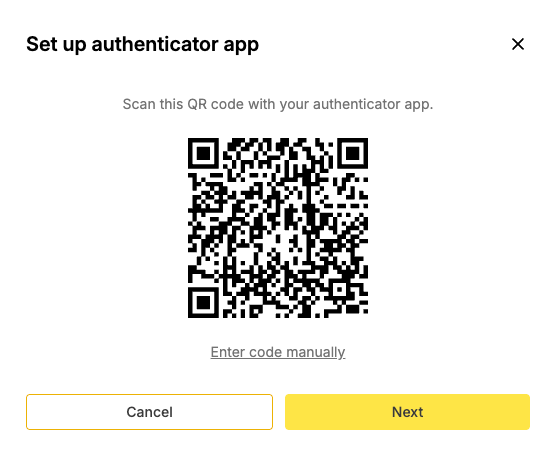
- A cryptographic QR code and a plain-text secret seed key will appear on screen.
- Open your authenticator app:
- Mobile App: Scan the QR code using your phone camera inside the authenticator app.
- Password Manager / Desktop: Copy the plain-text secret seed string and paste it into the TOTP field of your password manager entry.
- Your authenticator will immediately begin generating rotating 6-digit verification codes every 30 seconds.
Step 4: Verify and Save Your Recovery Code
- Enter the current 6-digit code displayed in your authenticator app into the verification box on the dashboard.
- Click Confirm.
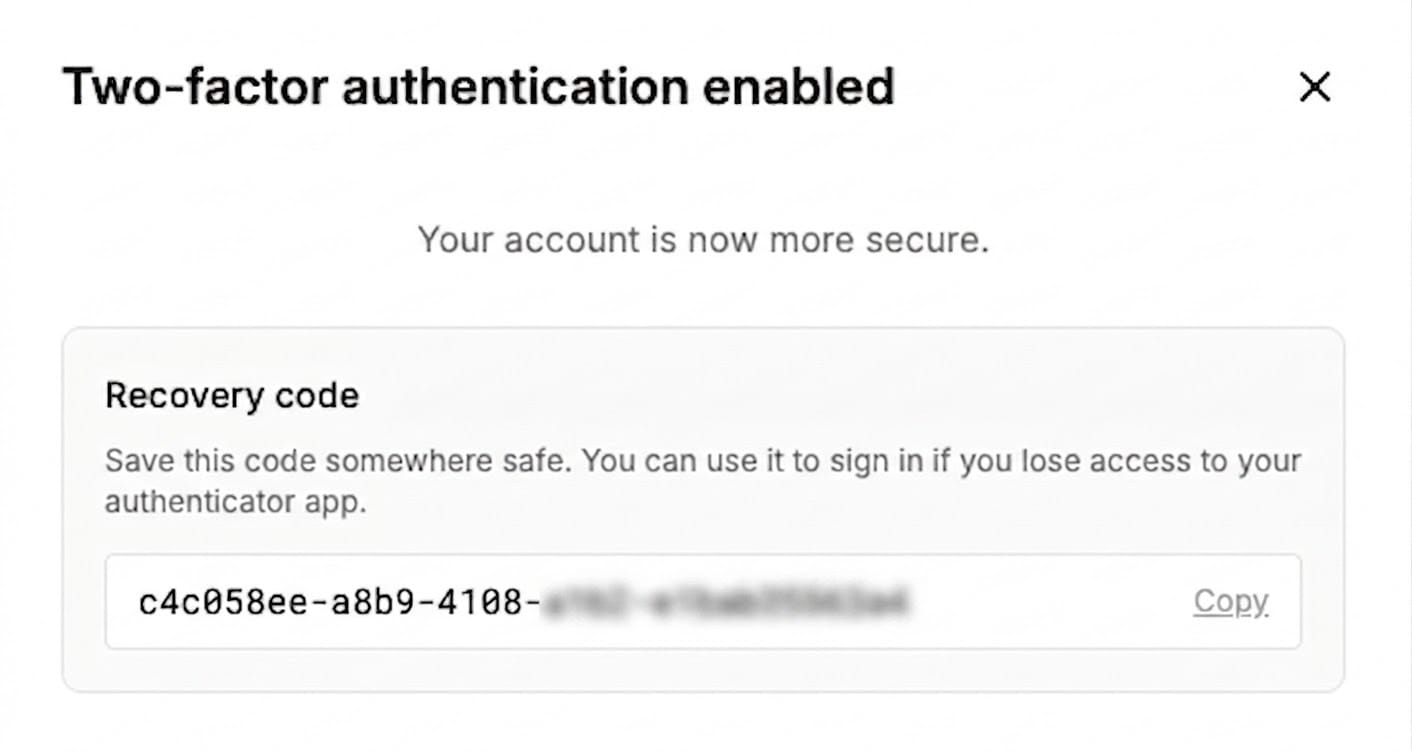
- CRITICAL STEP: The dashboard will display one single-use Emergency Recovery Code.
- Copy this recovery code and store it in an encrypted password manager or offline secure location.
Step 5: Verify Setup in a Private Window
Do not test your setup by using your emergency recovery code. Instead:
- Open a new private/incognito browser window.
- Navigate to app.alpaca.markets.
- Enter your email and password.
- Verify that the login screen challenges you for your 6-digit TOTP code, and enter the code from your authenticator app to complete login.
Troubleshooting & Account Recovery
A. TOTP Code Rejection (Clock Drift)
TOTP codes are mathematically derived from the current UTC timestamp. If your authenticator device clock drifts from standard time, the generated codes will be invalid.
- Authentication Drift Tolerance : Alpaca authentication servers accept TOTP codes within a +/- 30-second window. If a code fails, wait for the next 30-second cycle to generate a fresh code before re-submitting.
- Device Clock Sync: On iOS and Android devices, verify in settings that Date & Time is set to Set Automatically (Network Time Protocol).
B. Lost Authenticator Device (Recovery Code Workflow)
If your mobile device is lost, stolen, or reset:
- Navigate to the Alpaca Dashboard Login.
- Enter your email and password.
- On the MFA challenge screen, click Use Recovery Code.
- Enter your saved single-use recovery code.
- Upon successful verification, the dashboard displays a confirmation toast stating "MFA has been disabled" and redirects you to the home dashboard.
- IMMEDIATE ACTION REQUIRED: Navigate directly back to Profile - > Security and re-enroll your new authenticator device to generate a fresh recovery code.
C. Total Lockout (Support Assistance)
If you lose both your authenticator device and your recovery code:
- Contact the Alpaca Support Portal.
- Support will initiate a manual identity verification protocol before resetting your authentication settings.
- Security Policy: Alpaca Support will NEVER ask you for your password, API secret key, TOTP verification codes, or recovery codes over email, phone, or tickets. Never share these credentials with anyone.
Account Security Verification Checklist
Verify each item to ensure your account meets production security standards:
- [ ] MFA Enrolled: TOTP multi-factor authentication is active on your Alpaca account via Profile -> Security.
- [ ] Recovery Code Stored: Your single-use emergency recovery code is safely stored in an encrypted vault.
- [ ] Private Window Verification: Successful login verified from an incognito session using the 6-digit authenticator code.
- [ ] Automatic Time Sync: Authenticator device has automatic network time synchronization enabled.
- [ ] API Keys Isolated: Trading scripts utilize dedicated API keys passed via environment variables or direct client instantiation.
Additional Resources & Documentation
- Paper Trading Vs Live Trading
- Troubleshooting Errors with Alpaca's Trading API
- API Key Security Best Practices for Alpaca Builders
- Alpaca Trading API Authentication Reference
- Alpaca Web Dashboard
- Alpaca Dashboard Security Settings
- Alpaca Support Portal
Please note that this article is for educational and general informational purposes only. Live trading involves risk, including the possibility of rapid financial loss from unauthorized or unintended activity. The security practices described in this article are intended to reduce, but do not eliminate, the risk of credential compromise, and following them does not guarantee the security of any account, key, or system. You are responsible for safeguarding your own API credentials and infrastructure.
Securities trading is offered by Alpaca Securities LLC (dba "Alpaca Clearing"). Crypto trading is offered by Alpaca Crypto LLC.
The Paper Trading API is offered by AlpacaDB, Inc. and does not require real money or permit a user to transact in real securities in the market. Providing use of the Paper Trading API is not an offer or solicitation to buy or sell securities, securities derivative or futures products of any kind, or any type of trading or investment advice, recommendation or strategy, given or in any manner endorsed by AlpacaDB, Inc. or any AlpacaDB, Inc. affiliate.
Information and outputs generated through Alpaca’s CLI, MCP Server, or connected AI agents are provided for educational and informational purposes only and do not constitute investment advice or a recommendation to buy, sell, or hold any security or cryptocurrency. AI-generated outputs may contain errors, omissions, or inaccuracies and should be independently reviewed and verified before use or reliance. Alpaca does not recommend any specific security, cryptocurrency, or investment strategy. Users should conduct their own due diligence before making investment decisions. All firms mentioned operate independently and are not responsible for one another's products or services.
Securities brokerage services are provided by Alpaca Securities LLC ("Alpaca Securities"), member FINRA/SIPC, a wholly-owned subsidiary of AlpacaDB, Inc. Technology and services are offered by AlpacaDB, Inc.
Cryptocurrency services are made available by Alpaca Crypto LLC ("Alpaca Crypto"), a FinCEN registered money services business (NMLS # 2160858), and a wholly-owned subsidiary of AlpacaDB, Inc. Alpaca Crypto is not a member of SIPC or FINRA.
This is not an offer, solicitation of an offer, or advice to buy or sell securities or cryptocurrencies or open a brokerage account or cryptocurrency account in any jurisdiction where Alpaca Securities or Alpaca Crypto, respectively, are not registered or licensed, as applicable.