
The launch of Alpaca’s official MCP Server allows Large Language Models (LLM) clients like Cursor, ChatGPT, and Claude to research, analyze, and place orders through natural language or code. This guide demonstrates how to connect the Model Context Protocol (MCP) server to Claude Mobile App.
To get the most out of this guide, explore the following resources first:
Prerequisites
To use Alpaca’s MCP Server remotely, make sure you have the following tools ready:
- An Alpaca Account
- Alpaca API keys (with paper or live trading access optional)
- To find your Alpaca API keys, please check our “How to Get Alpaca’s Trading API Key and Start Connect” or “How to Start Paper Trading with Alpaca”
- Python with version 3.10 or higher
- Docker account
- GitHub account
- uv (Install using the official guide)
- AI tool (MCP Client) with a paid subscription is preferred - We use Claude with “pro plan” as an example
- Terminal (macOS/Linux) | Command Prompt or PowerShell (Windows)
- Any cloud service such as AWS, Azure, GCP - We use Render as an example
How Remote Alpaca’s MCP Server Helps Traders with AI
With a self-hosted remote version of Alpaca’s MCP Server, you can bring Alpaca’s Trading API directly into your favorite AI interface and streamline essential parts of your trading workflow through natural language or code. Some examples of what you can do include:
- Asking AI to pull your Alpaca trading account details, portfolio positions, unrealized P and L, market data, and company news
- Analyzing market trends, earnings highlights, and price movements with AI assisted reasoning
- Building and refining trading algorithms in a single, connected workflow
- Automating repetitive tasks using an AI powered Command Line Interface (e.g. Claude Code, Gemini CLI)
- Placing trades through natural language or programmatically using Alpaca’s Trading API
This video is for informational and educational purposes only.
Overview of Setting Up
Here’s a quick overview of how to set up a remote Alpaca’s MCP Server, connect it to the Claude mobile app, and bring AI into your trading workflow.
- Install Alpaca’s MCP Server locally, then build and push a Docker image
- Deploy the Alpaca’s MCP Server remotely using a cloud service
- Connect it to Claude AI to execute trades through natural language
We will cover each step in more detail below.
Step 1: How to Install Alpaca’s MCP Server and Build and Push a Docker Image
Let’s walk through setting up Alpaca’s MCP Server. First, we’ll install it locally and then build a Docker image.
What is Docker?
Docker is a tool that lets you package an application and everything it needs to run into one portable environment.
What is a Docker image?
A Docker image is that packaged environment. It is a ready-to-use snapshot of the app and its setup, which you can use to quickly create running instances called containers.
Step 1-1. Install the Alpaca’s MCP Server
Start by installing Alpaca’s MCP Server on your local machine. Open Terminal (macOS/Linux) or Command Prompt/PowerShell (Windows), then enter the following commands:
git clone https://github.com/alpacahq/alpaca-mcp-server.git
cd alpaca-mcp-server
Step 1-2. Login to Docker and Containerize to Push
Before proceeding, install Docker (or Docker desktop for a GUI). After installation, run the following command to verify Docker is installed on your computer:
docker version
docker info
Then, log in to Docker Hub through CLI. You’ll be prompted for your Docker Hub username and password. This is required for pushing Docker images to Docker hub later.
docker loginWhat is a Docker hub?
Docker Hub repositories allow you to have container images connected with other services like a cloud service. Docker images are pushed to Docker Hub through the docker push command.
How do we connect Docker and Docker Hub together?
They use the same account system. When you sign up on hub.docker.com, that same username and password are used to authenticate Docker on your local machine. Once you log in through the terminal or Docker Desktop, your local Docker client is linked to your Docker Hub account automatically.
Once you login to your Docker account, use your Docker username (e.g. `idsts2670`) and your preferred Docker Image name (e.g. `alpaca-mcp-server`) to build and push the Docker image to Docker hub. We name the "tag" as v1.0.1 here.
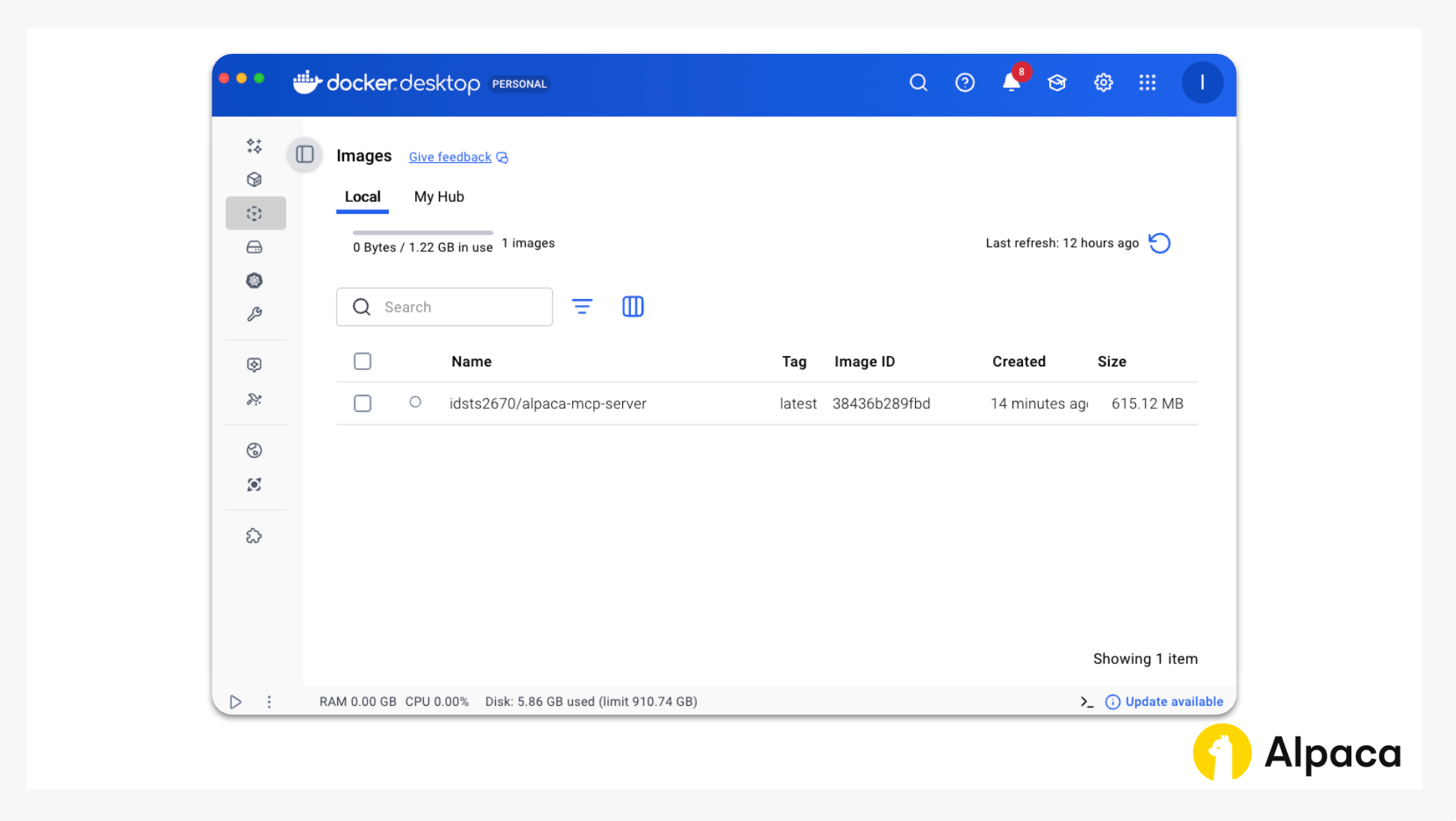
docker buildx build --platform=linux/amd64 -t username/alpaca-mcp-server:v1.0.1 . --pushIf you have a Docker Desktop app, you could see the Docker Image was built.
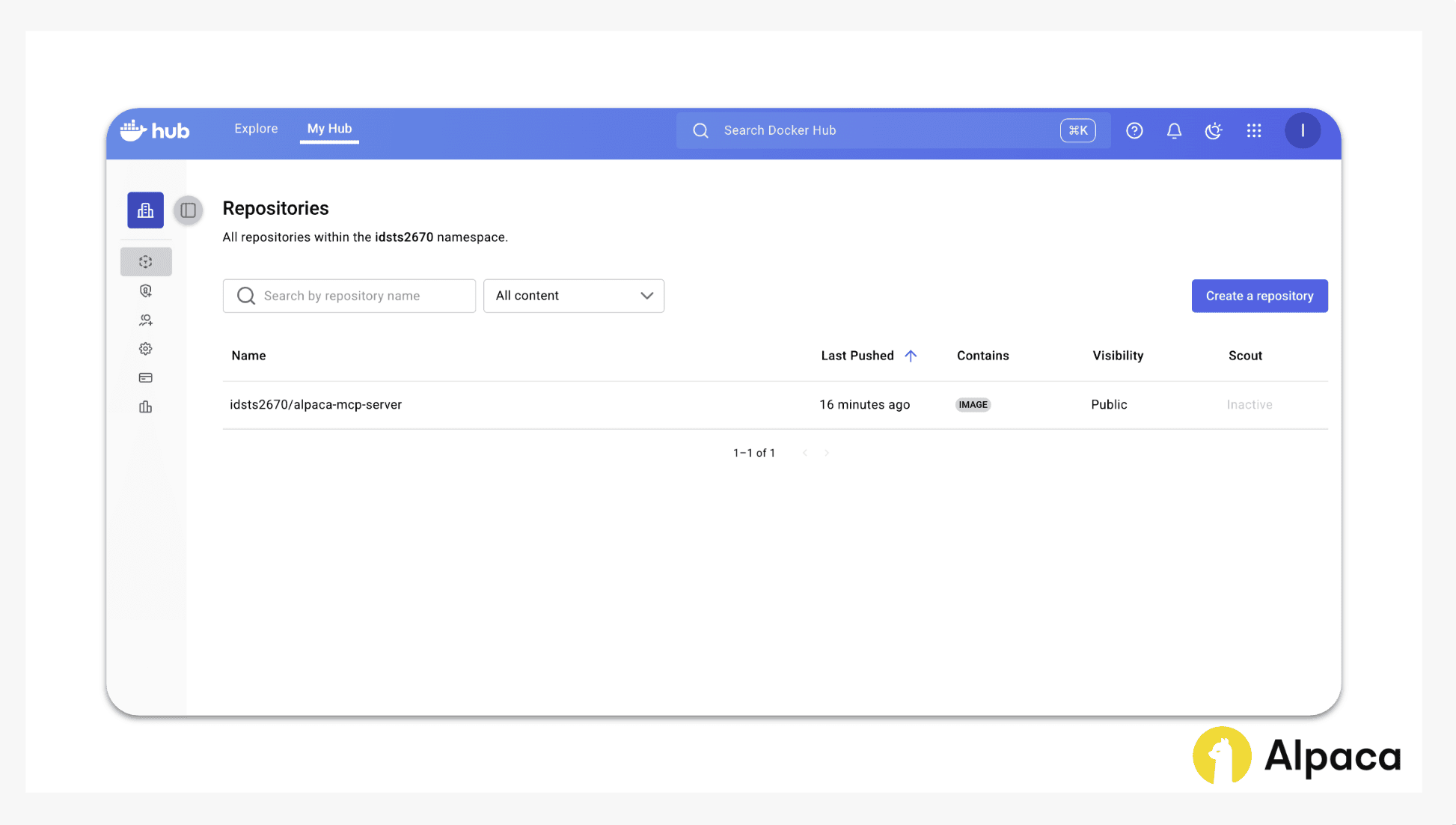
You can also check your Docker image was pushed to a Docker hub.
You can do a sanity check locally by running the following command in terminal:
docker run --rm -p 8000:8000 -e PORT=8000 username/custom-docker-image-name:v1.0.1 python -m alpaca_mcp_server.server --transport streamable-http --host 0.0.0.0 --port 8000You would likely see the following:
INFO:     Started server process [1]
INFO:     Waiting for application startup.
StreamableHTTP session manager started
INFO:     Application startup complete.
INFO:     Uvicorn running on http://0.0.0.0:8000 (Press CTRL+C to quit)
Step 2: How to Deploy Remote Alpaca’s MCP Server Using Render: Cloud Application Platform
Now that we’ve pushed the Docker image (containerized Alpaca’s MCP server) to Docker Hub, we can host it as a web service using a cloud application platform such as Render. You can use any cloud platform you prefer, but for this tutorial, we’ll use Render because of its simplicity.
At Render’s dashboard, create a new project
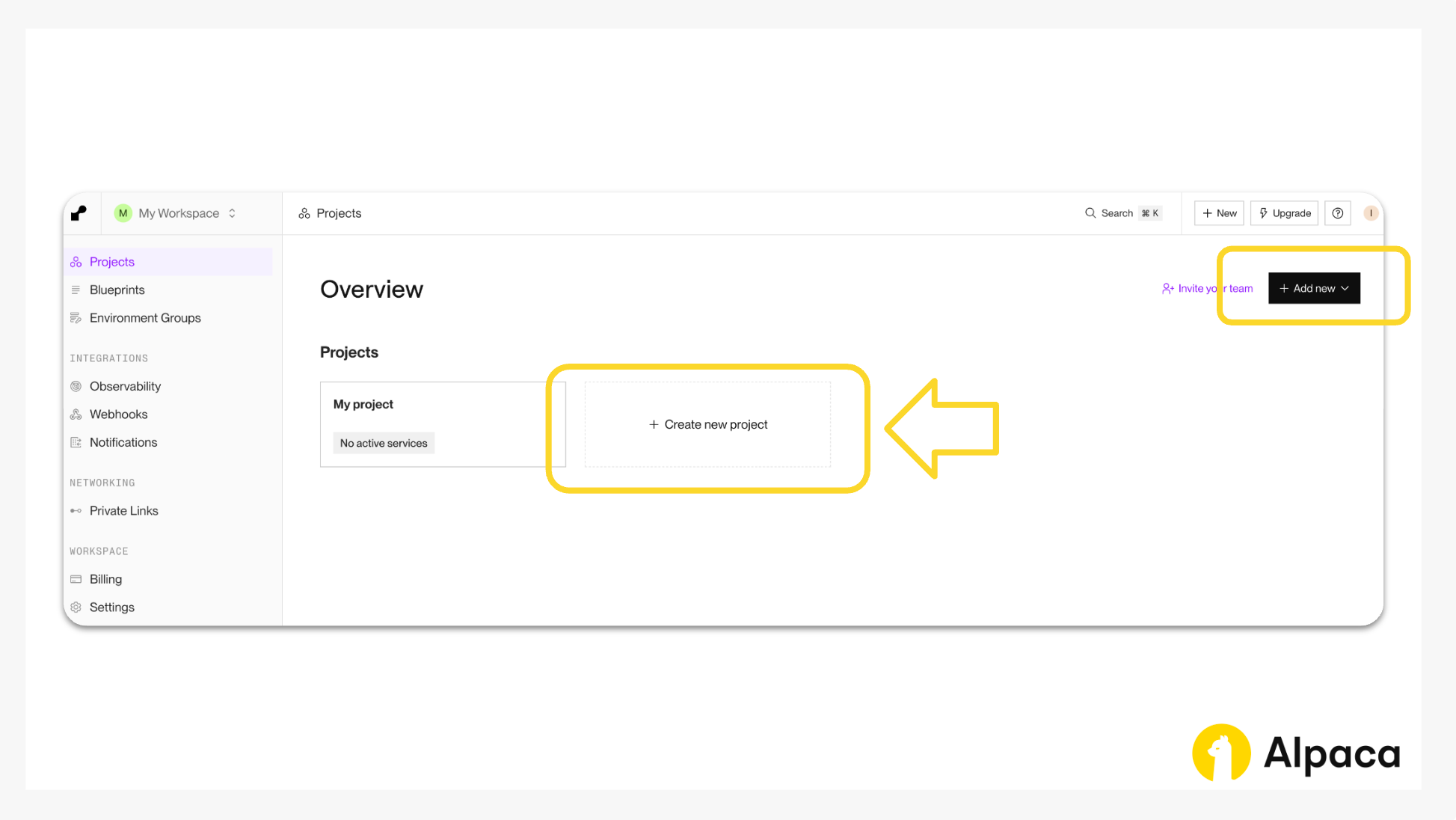
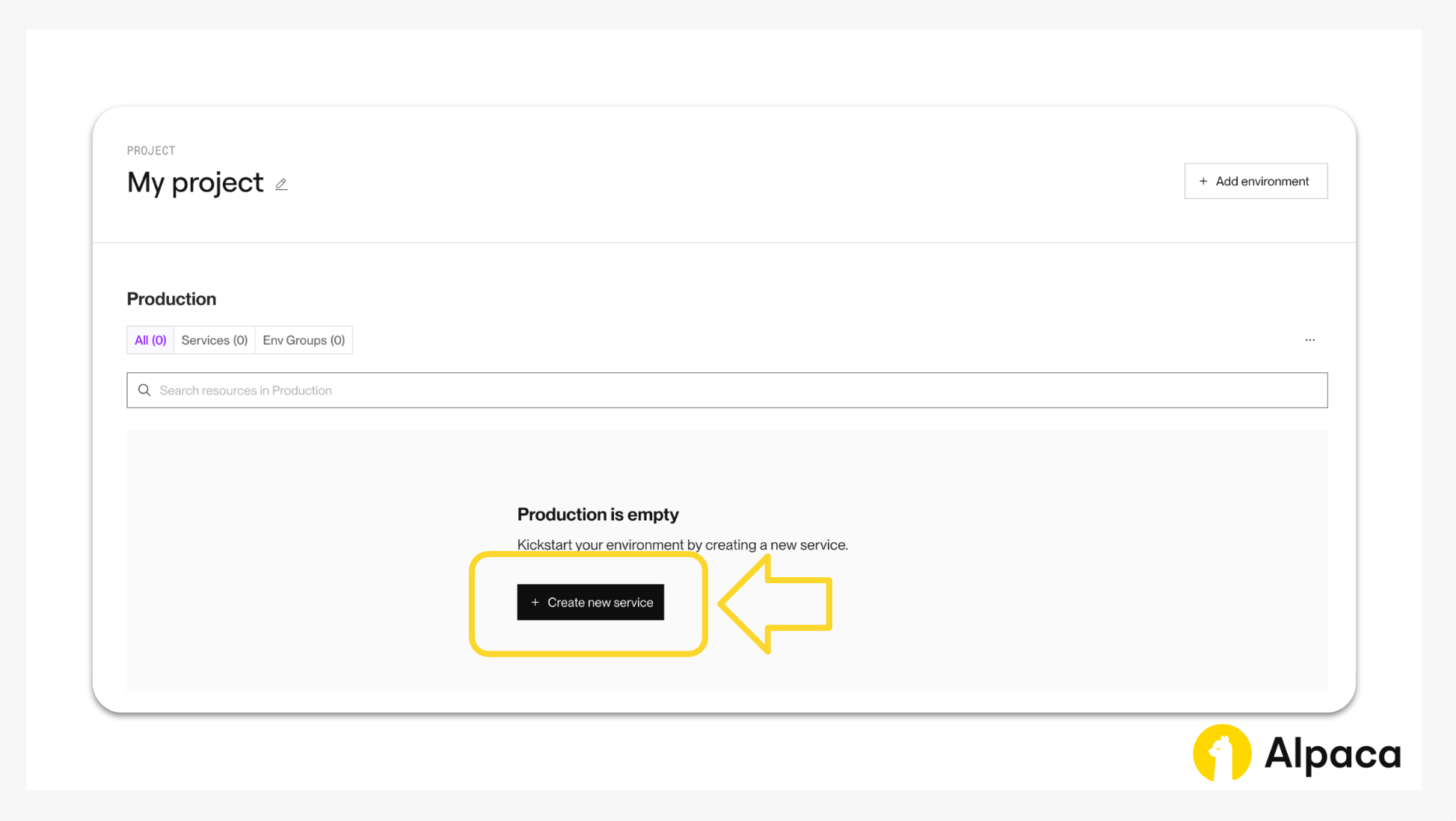
And then, Click “Create new service.”
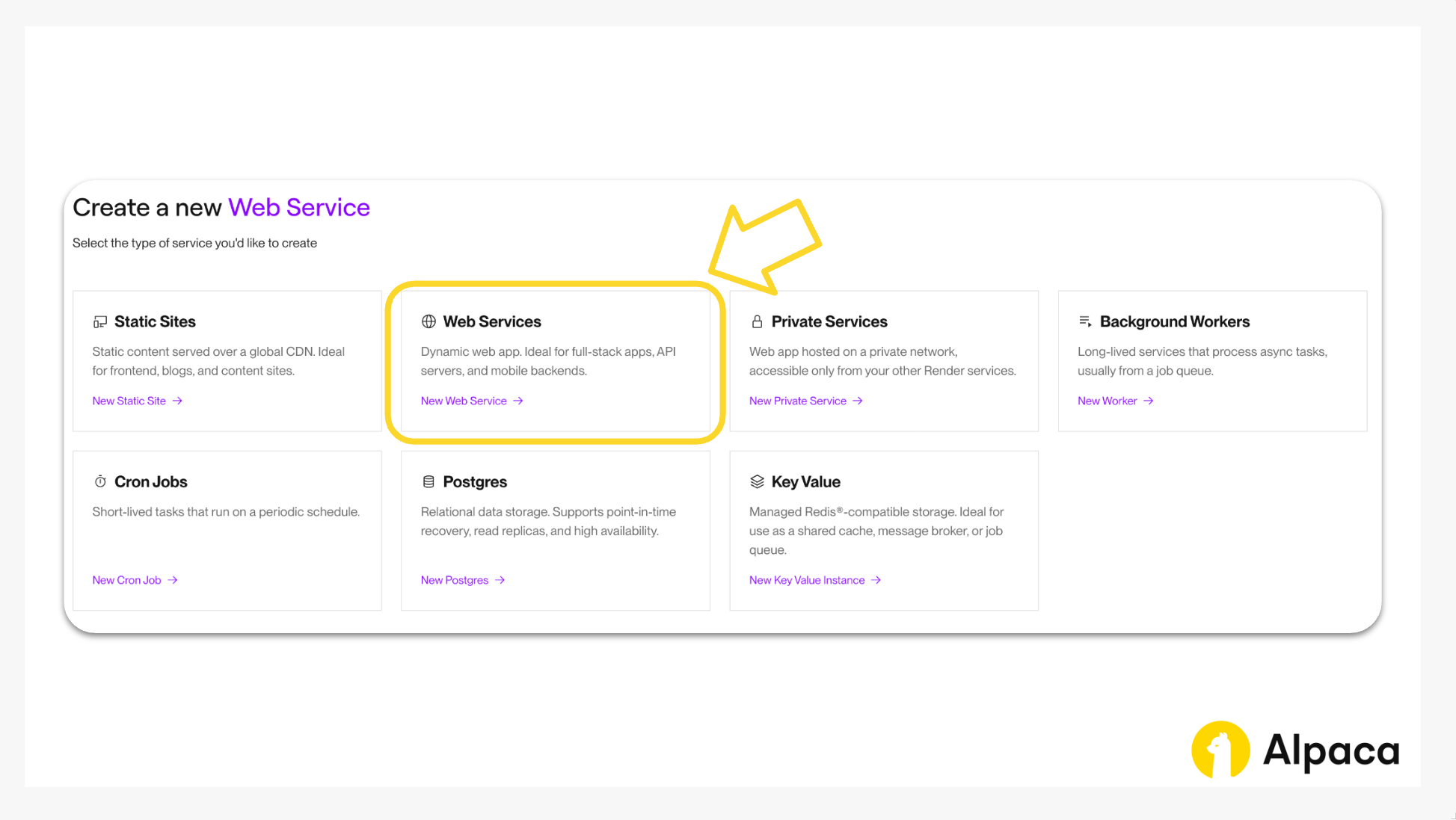
Select “Web Service” to start the service.
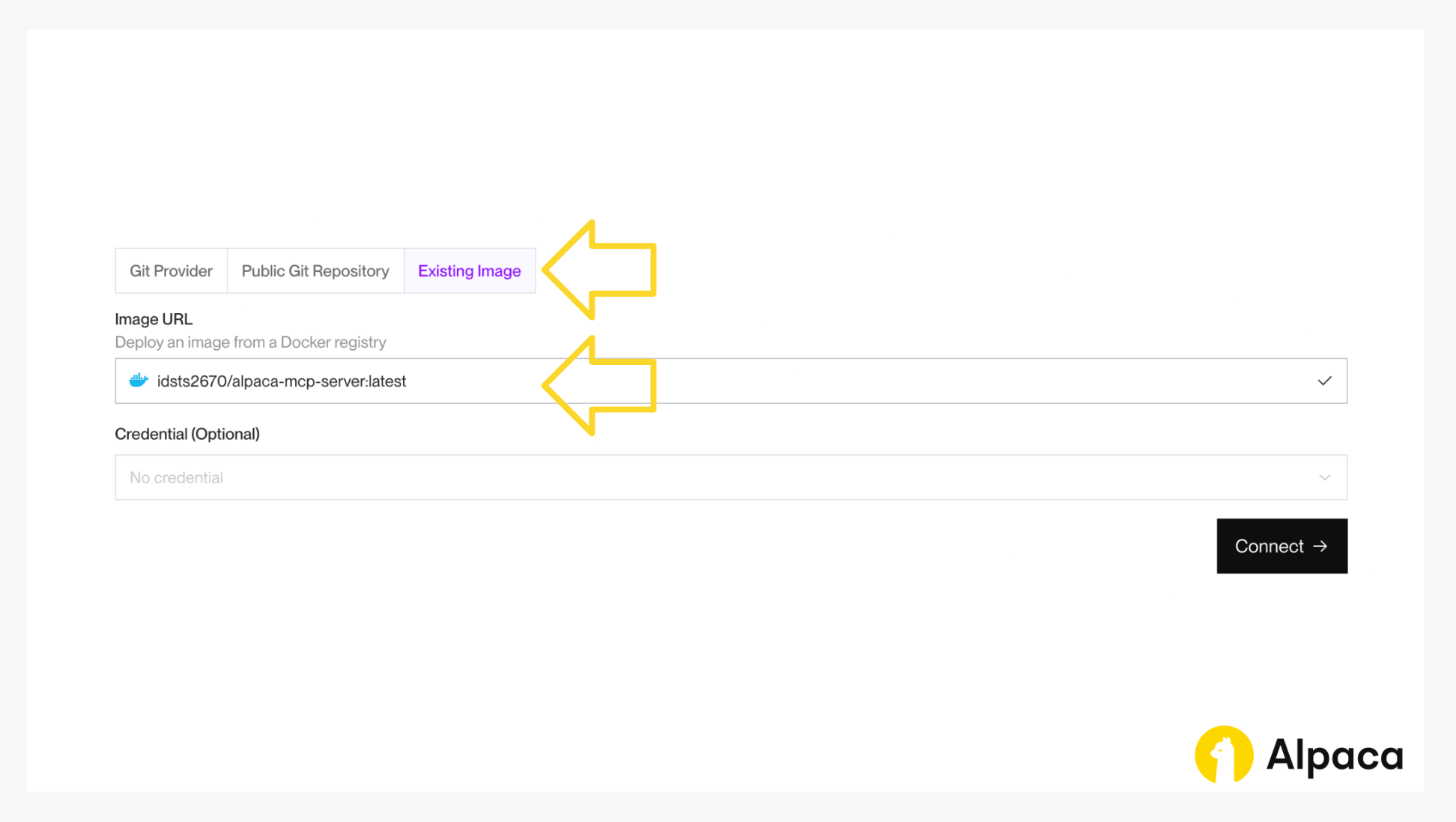
Click “Existing Images” and add the pushed Docker image URL (username/custom-docker-image-name:v1.0.1). Please make sure to add your preferred version tag (e.g., v1.0.1 or latest) at last. And then, hit the `connect` button.
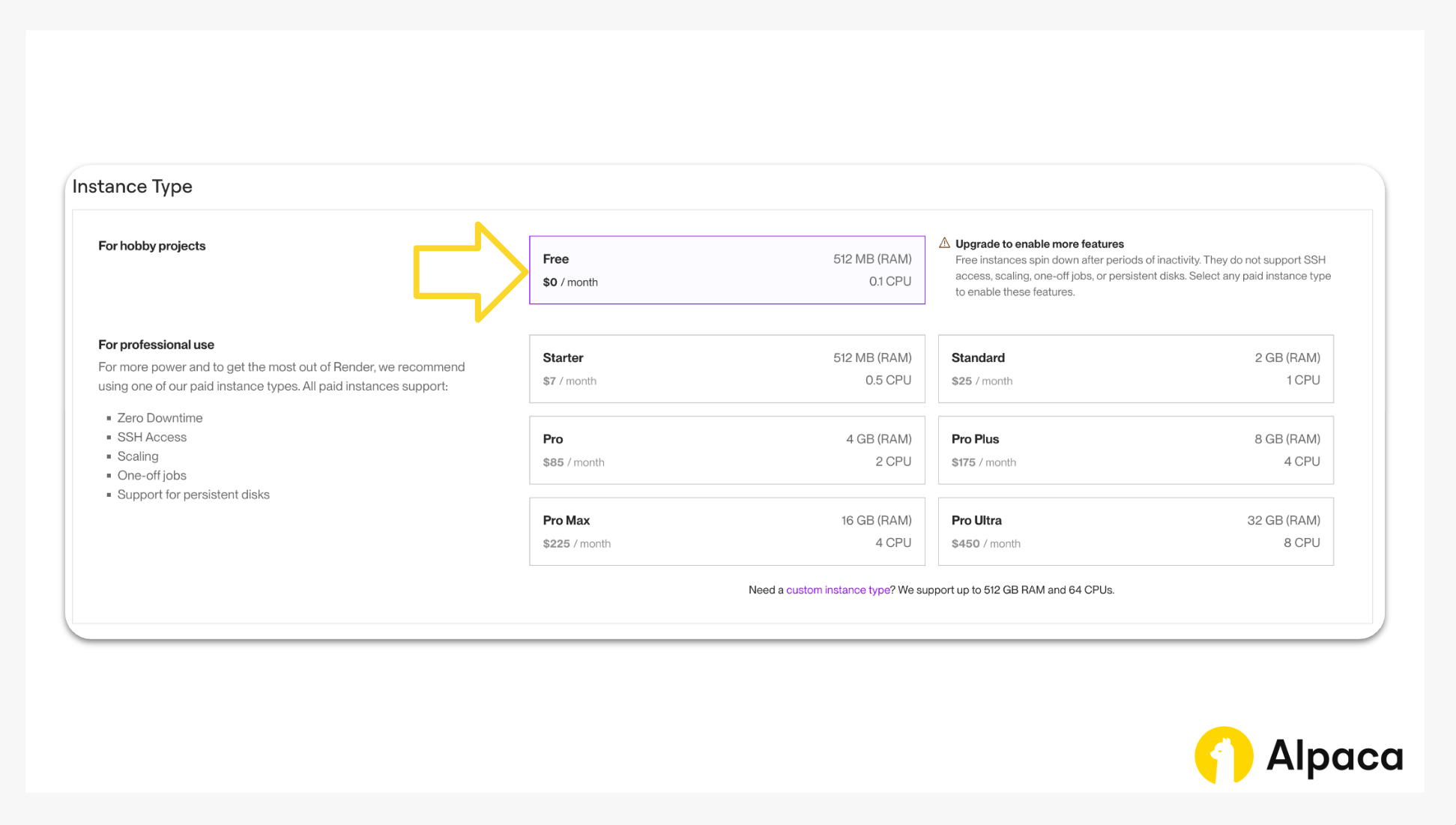
And then, choose your instance for remote Alpaca’s MCP server. We use Free for this tutorial.
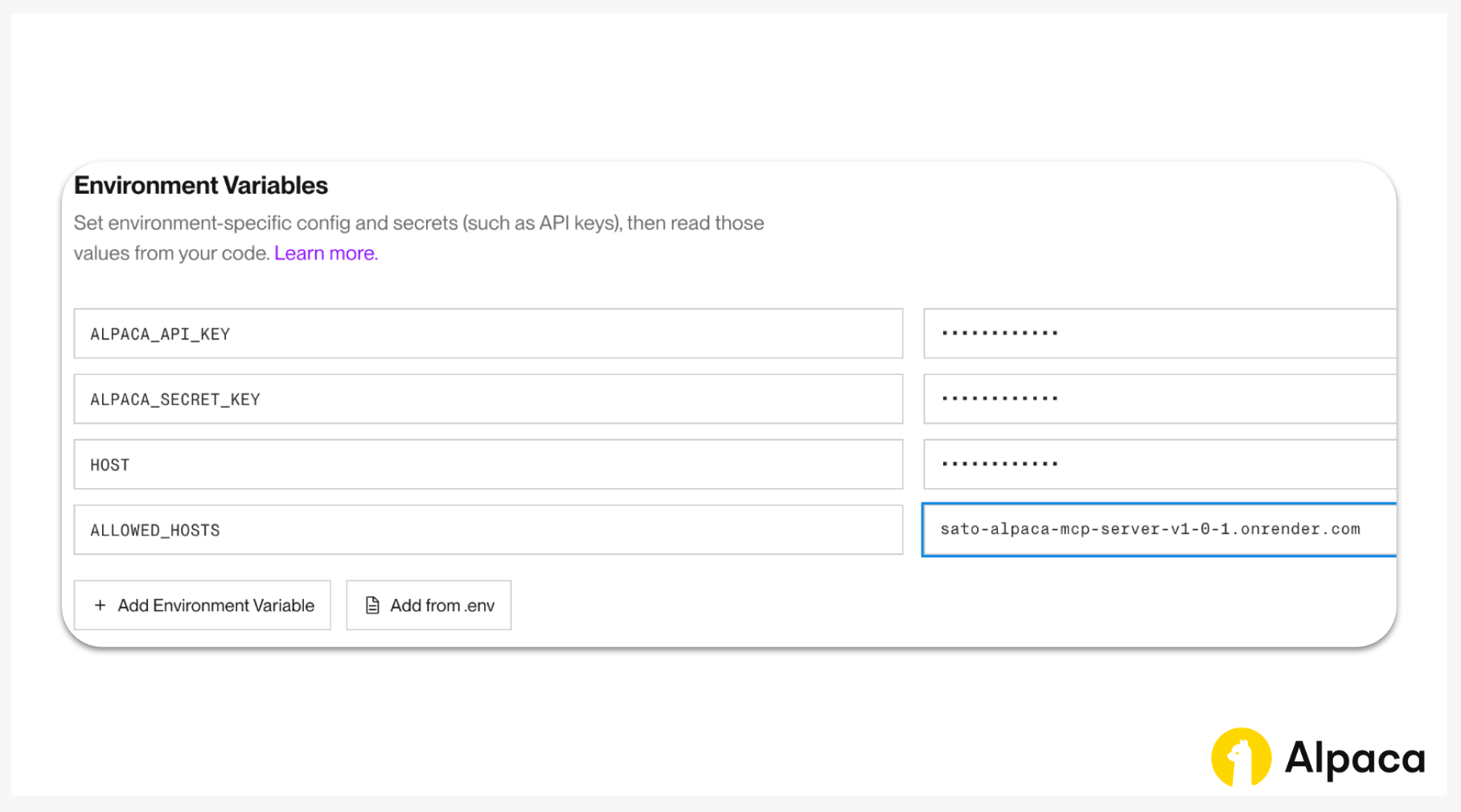
Set the environment variables for Alpaca’s MCP Server, namely, ALPACA_API_KEY and ALPACA_SECRET_KEY. Also set HOST=0.0.0.0 and ALLOWED_HOSTS=your-app-name.onrender.com (e.g., sato-alpaca-mcp-server-v1-0-1.onrender.com)
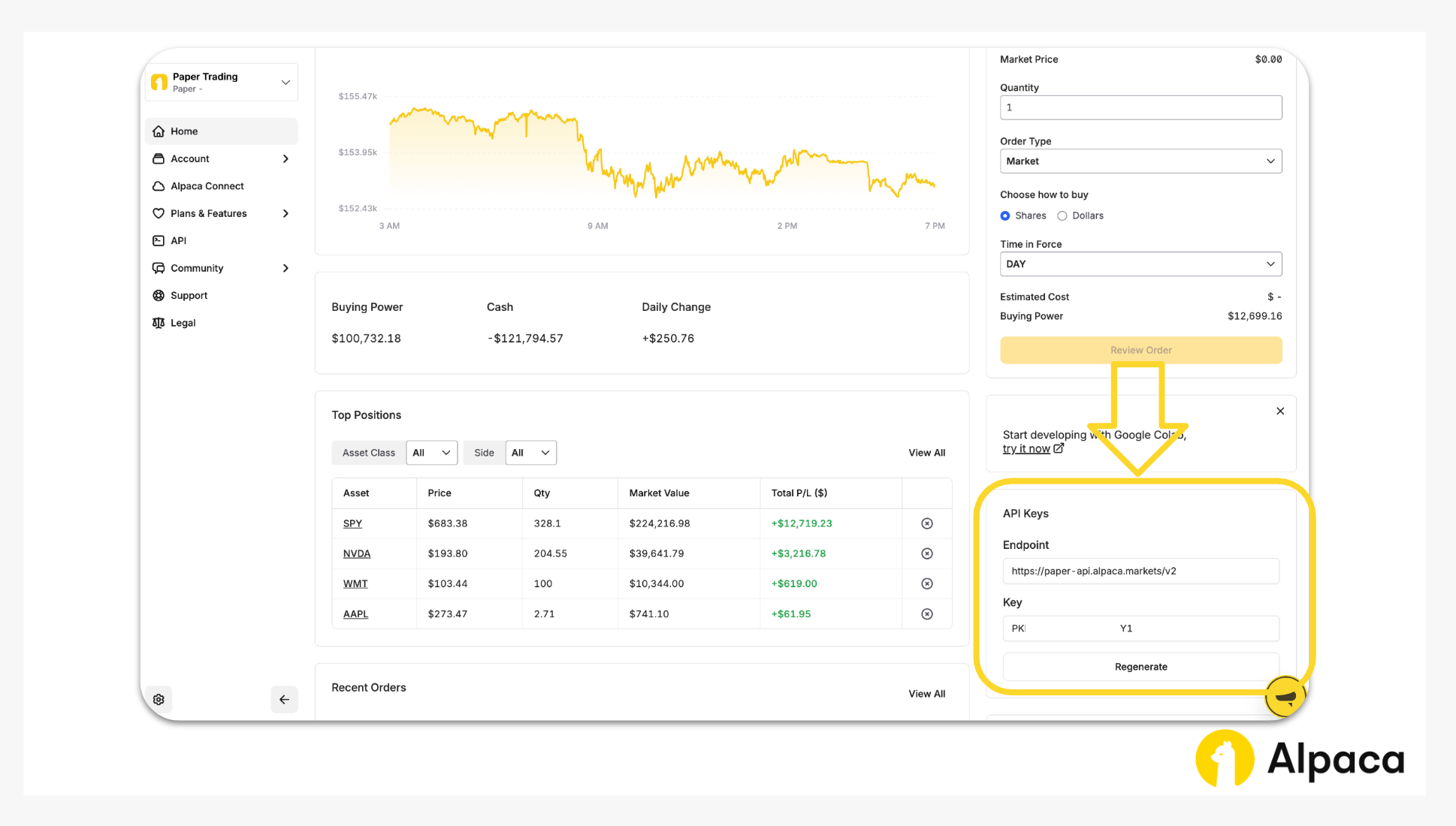
If you are new to Alpaca, you can find your API keys in your Alpaca dashboard.
In the “Advanced” settings, set the Docker Command on Render to the following so that the web service runs with streamable-http. And then, hit “Deploy Web Service”
alpaca-mcp-server serve --transport streamable-http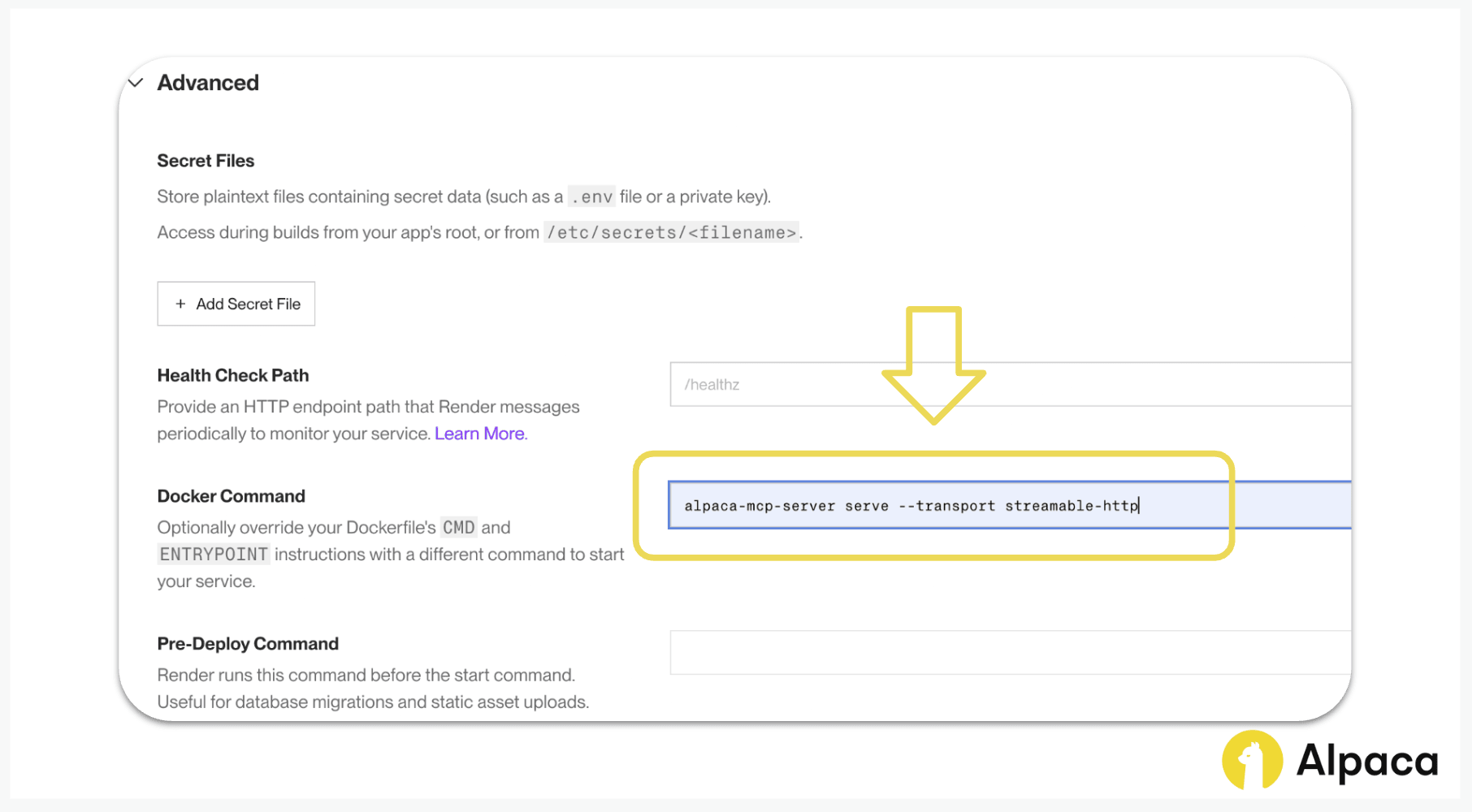
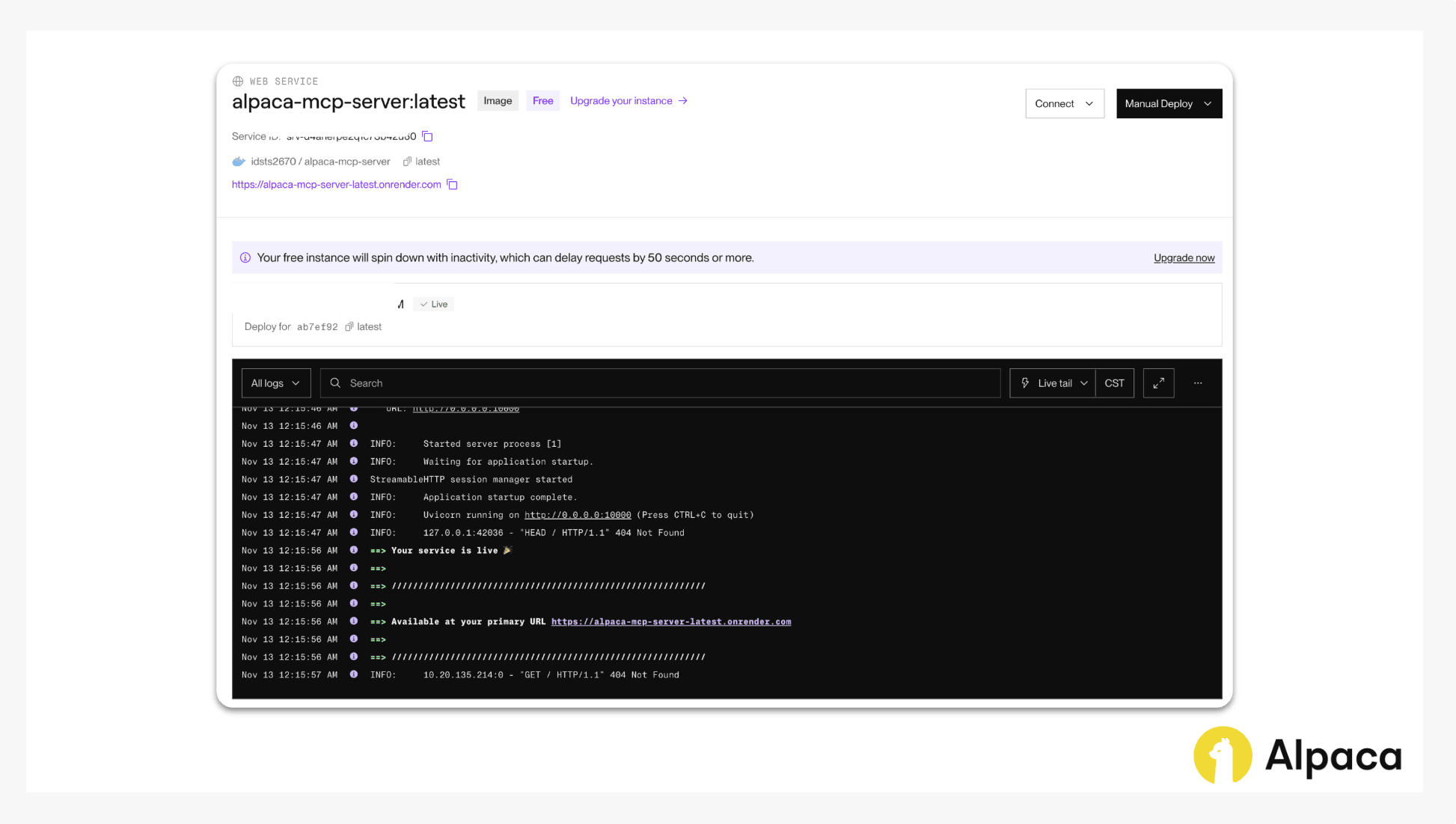
After connecting successfully, you should be able to see the logs showing the URL to connect with (e.g. https://alpaca-mcp-server-v-1-0-1.onrender.com).
Step 3: How to Connect Claude AI and Trade with English on Mobile
Now that you’ve remotely “self-hosted” Alpaca’s MCP Server, we can connect it as a remote MCP server.
Step 3-1. Connect Remote Alpaca’s MCP Server with Claude Webpage
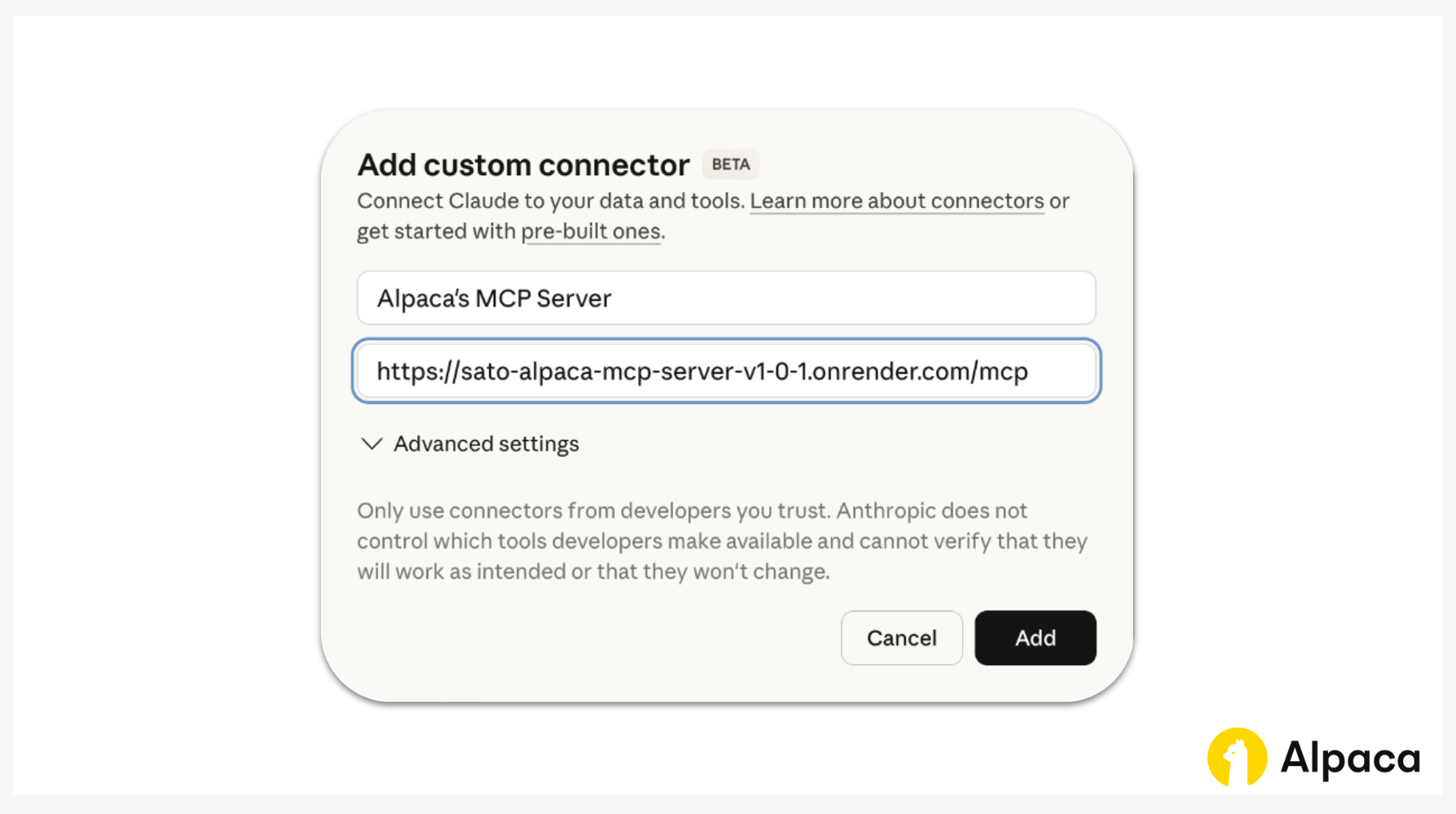
You need to add it as a custom connector on the Claude webpage to use the MCP server in the Claude mobile app. Enter your preferred MCP Server name (for example, Alpaca’s MCP Server) and use https://your-predefined-app-name-version_tag.onrender.com/mcp as the Remote MCP Server URL (making sure it ends with mcp).
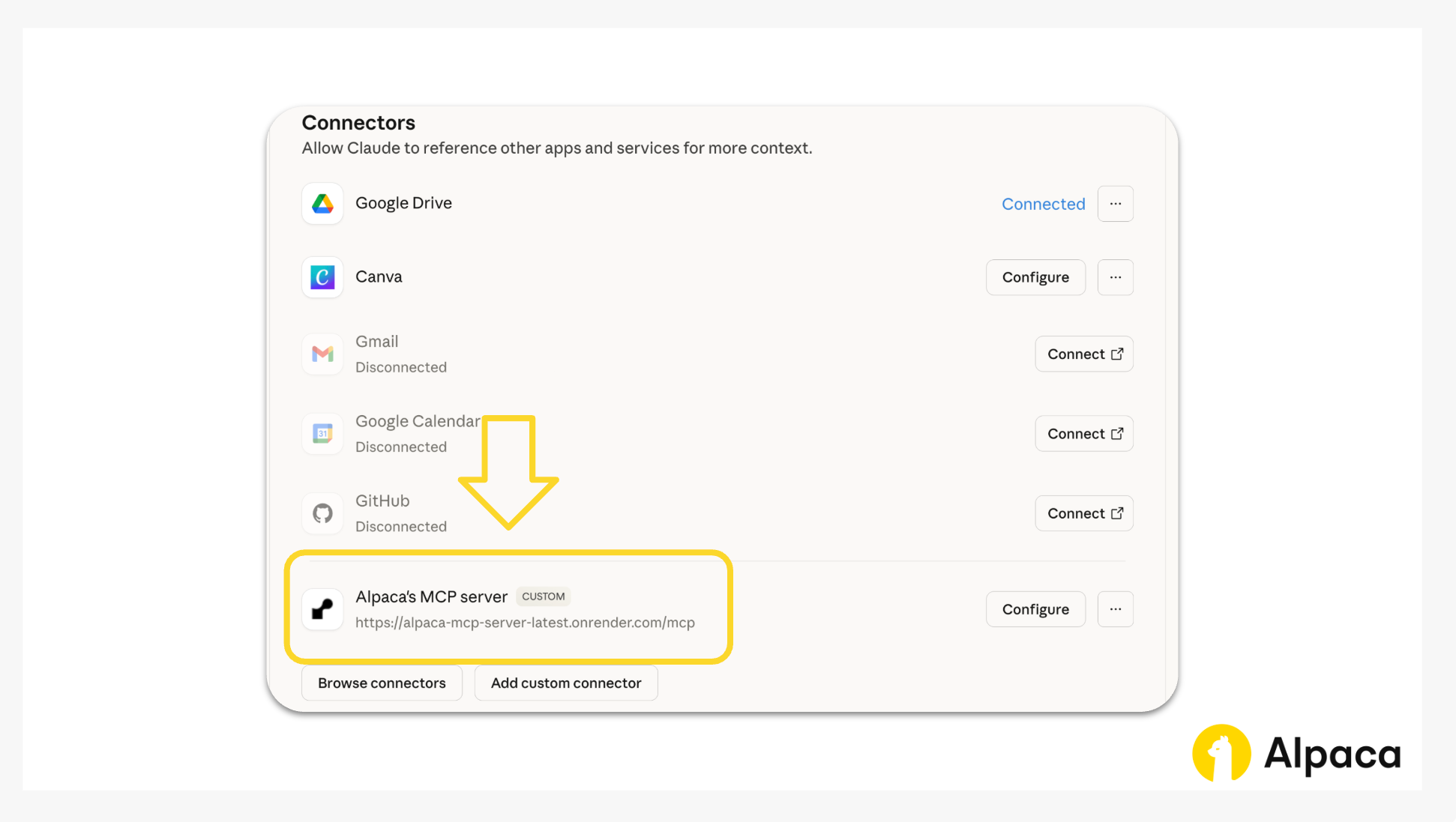
Now, you should be able to see Alpaca’s MCP server connected with Claude's website.
Step 3-2. Use Alpaca’s MCP Server on Claude Mobile App
Now that we connect it with the Claude system, we can open up Claude mobile and check.
Open the Claude mobile app. On the chat screen, tap the plus (+) icon next to the message box to open additional options.
In the menu that appears, scroll and tap Manage Connectors to view all available and custom connectors.
In the Connectors list, look for Alpaca’s MCP Server under Custom Connectors. Tap it to enable and start using it within your Claude’s mobile app.
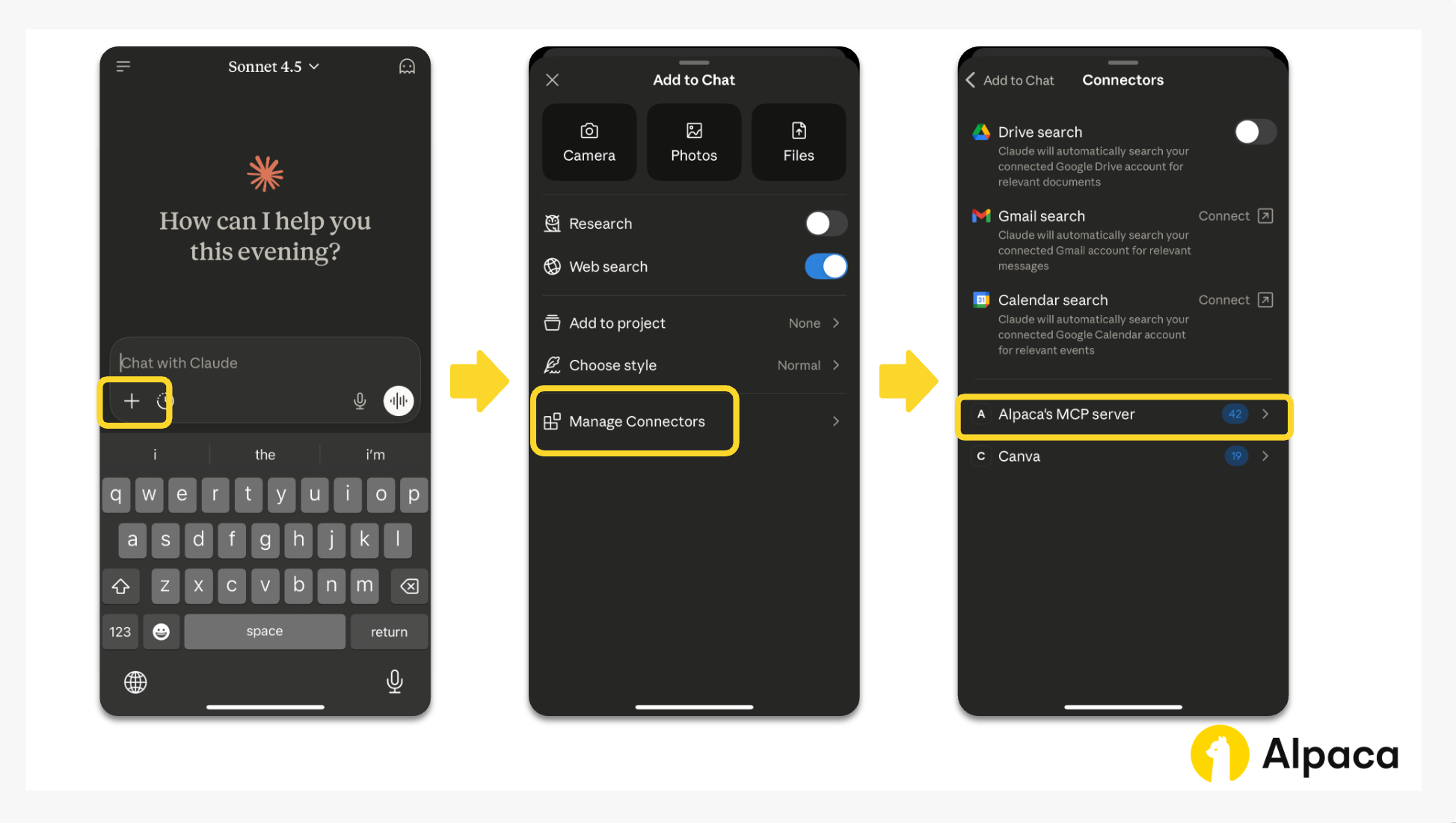
After confirming Alpaca’s MCP server connected with the Claude app, you can enjoy the power of AI on trading with the Alpaca’s Trading API.
This video is for informational and educational purposes only.
Security Considerations for Remote MCP Deployment
Running an MCP server remotely introduces a few important security considerations. Many early stage examples such as FastMCP are designed for local testing and may not include authentication or encrypted communication by default.
When a server is publicly accessible, it is possible for external requests to reach it. If the server handles sensitive information such as Alpaca Trading API keys, this can create a risk of unauthorized access or unintended tool execution.
To reduce these risks, a secure deployment should include HTTPS or TLS for encrypted communication and a reliable token based authentication method. Taking these steps helps protect your credentials and ensures that only trusted clients can interact with your MCP server.
Conclusion
With “self-hosted” remote Alpaca's MCP server and AI interface, we can put your idea into working trading action quickly, powered by Alpaca’s Trading API. Want to try it yourself? Explore the GitHub repository to get started.
If you're new to Alpaca, sign up on our website and embark on your own trading journey!
As we put these concepts into practice, feel free to share your feedback and experiences on our forum, Slack community, or subreddit! For those looking to algorithmic trading with Alpaca’s Trading API, here are some additional resources:
- Alpaca-py SDKs Documentation
- Sign up for an Alpaca's Trading API account
- How to Connect to Alpaca's Trading API
- How to Start Paper Trading with Alpaca's Trading API
- How to Build an MCP-Based Trading Workflow with Claude and Google Sheets
- Vibe Coding: How to Build Options Trading Algorithms with Alpaca’s MCP Server & Cursor AI
- API Reference Documentation: About Trading API
- Alpaca’s MCP Server YouTube Playlist
Alpaca’s MCP Server FAQ
What is Alpaca’s MCP Server?
Alpaca’s MCP Server lets traders connect AI chat apps, AI CLIs, or IDEs to Alpaca’s Trading API so they can research markets, analyze data with AI, and place trades using natural language instead of code.
How does Alpaca’s MCP Server work?
The server translates an AI prompt into structured API requests and sends them to Alpaca’s Trading API. It then formats the responses so the AI tool can clearly display market data, portfolio details, and order results.
What do I need to use Alpaca’s MCP Server?
To get started, you need:
- Python 3.10 or higher
- The
uvpackage manager - Alpaca's Trading API keys
- An MCP compatible client such as an AI chat app, AI CLI, or IDE
You can find setup instructions in the Alpaca's MCP Server GitHub repository: https://github.com/alpacahq/alpaca-mcp-server.
Insights generated by our MCP server and connected AI agents are for educational and informational purposes only and should not be taken as investment advice. Alpaca does not recommend any specific securities or investment strategies. Past performance from models does not guarantee future results. Please conduct your own due diligence before making any decisions. All firms mentioned operate independently and are not liable for one another.
All images provided above are for illustrative and educational purposes only.
All investments involve risk, and the past performance of a security, or financial product does not guarantee future results or returns. There is no guarantee that any investment strategy will achieve its objectives. Please note that diversification does not ensure a profit, or protect against loss. There is always the potential of losing money when you invest in securities, or other financial products. Investors should consider their investment objectives and risks carefully before investing.
Securities brokerage services are provided by Alpaca Securities LLC ("Alpaca Securities"), member FINRA/SIPC, a wholly-owned subsidiary of AlpacaDB, Inc. Technology and services are offered by AlpacaDB, Inc.
This is not an offer, solicitation of an offer, or advice to buy or sell securities or open a brokerage account in any jurisdiction where Alpaca Securities is not registered or licensed, as applicable.