Alpaca now supports Good ‘Til Cancelled (GTC) orders for options. With GTC, your order stays active across multiple trading sessions until it fills or you manually end it.
This guide covers how to update your workflow to use GTC orders via Alpaca’s Trading API and web dashboard.
Benefits of GTC for Options
Using GTC can help in a few practical ways, including:
- Fewer re-entries: Your order stays open across sessions, so you do not need to submit the same order each trading day.
- More consistency: The order lives at the broker level, so it remains active even if your local script stops running or you are offline.
- Better chance to fill: Options liquidity can be uneven. A standing order can fill when the market trades through your price, even if you are not actively watching.
Although GTC orders increase automation, they also introduce new risks. Because these orders remain active across multiple trading sessions, an order may be filled at a price or time that no longer aligns with your original intention. To mitigate this, GTC orders are often implemented with frequent reviews, volatility-aware pricing, and clear cancellation rules. This approach helps to ensure the automation supports trading discipline instead of becoming a source of unintended risk.
How to Submit a GTC Options Order with Alpaca’s Trading API
Placing a GTC order is similar to a Day order. You just need to change the time_in_force parameter to GTC.
Prerequisites
- Alpaca’s Trading API account
- You can receive your
ALPACA_API_KEYandALPACA_SECRET_KEYfrom your Alpaca dashboard - Check out our tutorial article: How to Start Paper Trading with Alpaca's Trading API
- You can receive your
- Python with alpaca-py installed
- Google Colab or Code Editor (IDE)
Step 1: Set Up Your Clients
First, import the required libraries, then connect to the trading client and the market data clients.
from datetime import date, datetime, timedelta
from zoneinfo import ZoneInfo

from alpaca.data.enums import OptionsFeed
from alpaca.data.historical.option import OptionHistoricalDataClient
from alpaca.data.requests import OptionLatestQuoteRequest, StockLatestBarRequest
from alpaca.trading.client import TradingClient
from alpaca.trading.enums import (
    AssetStatus,
    ContractType,
    OrderSide,
    OrderType,
    TimeInForce,
)
from alpaca.trading.requests import GetOptionContractsRequest, LimitOrderRequest

ALPACA_API_KEY = "YOUR_API_KEY"
ALPACA_SECRET_KEY = "YOUR_SECRET_KEY"

# Connect to paper trading for this example
trade_client = TradingClient(api_key=ALPACA_API_KEY, secret_key=ALPACA_SECRET_KEY, paper=True)
stock_historical_data_client = StockHistoricalDataClient(api_key=ALPACA_API_KEY, secret_key=ALPACA_SECRET_KEY)
option_historical_data_client = OptionHistoricalDataClient(api_key=ALPACA_API_KEY, secret_key=ALPACA_SECRET_KEY)
Step 2: Find Available Option Contracts for an Underlying Symbol
Use the get_option_contracts endpoint to fetch available option contracts for the specified underlying symbol. The response includes details such as the close price, expiration date, contract type, option symbol, and strike price.
With the Algo Trader Plus plan (market data subscription), set feed=DataFeed.SIP to fetch the latest stock bar data. Otherwise, use DataFeed.IEX. If you need access to the latest market data for stocks or options from all US exchanges, subscribe to the Algo Trader Plus plan from Alpaca’s dashboard and try the request once the subscription is active.
*Please note that we are using SPY as an example, and it should not be considered investment advice.
# Set underlying symbol
SYMBOL = 'SPY'

# Set the timezone
timezone = ZoneInfo('America/New_York')

# Get current date in US/Eastern timezone
today = datetime.now(timezone).date()

# Retrieve latest stock bar data
req = StockLatestBarRequest(
    symbol_or_symbols=[SYMBOL],
    feed=DataFeed.IEX
)
bars = stock_historical_data_client.get_stock_latest_bar(req)

# Retrieve option contracts available for trade
req = GetOptionContractsRequest(
    underlying_symbols=[SYMBOL],
    status=AssetStatus.ACTIVE,
    # Search for call options
    type=ContractType.CALL,
    # Set the strike price range for the options (98-102% of underlying close prices)
    strike_price_gte=str(round(bars[SYMBOL].close * 0.98, 2)),
    strike_price_lte=str(round(bars[SYMBOL].close * 1.02, 2)),
    # Set the expiration date range for the options (12-22 days from today)
    expiration_date_gte=today + timedelta(days=12),
    expiration_date_lte=today + timedelta(days=22)
)

trade_client.get_option_contracts(req).option_contracts
You’d see an output like below:
[...
{   'close_price': '11.93',
     'close_price_date': datetime.date(YYYY, MM, 25),
     'expiration_date': datetime.date(YYYY, MM, DD),
     'id': 'xxxxxxx-e326-4bea-ac9c-yyyyyyyyyy',
     'name': 'SPY MM DD YYYY XXX Call',
     'open_interest': '1127',
     'open_interest_date': datetime.date(YYYY, MM, DD),
     'root_symbol': 'SPY',
     'size': '100',
     'status': <AssetStatus.ACTIVE: 'active'>,
     'strike_price': XXX.0,
     'style': <ExerciseStyle.AMERICAN: 'american'>,
     'symbol': 'SPYYYMMDDC00XXX000',
     'tradable': True,
     'type': <ContractType.CALL: 'call'>,
     'underlying_asset_id': UUID('xxxxx-1960-421a-YYYY-a484544193df'),
     'underlying_symbol': 'SPY'},
...,
]
Step 3: Retrieve the Latest Option Contract Quotes
Use the get_option_latest_quote endpoint to retrieve real-time pricing and market data, including bid/ask prices, sizes, and exchange information of one or more option contracts.
With the Algo Trader Plus (market data subscription), set feed=OptionsFeed.INDICATIVE to fetch the latest options quote data. Otherwise, use DataFeed.INDICATIVE.
*Please note that we are using SPY’s option contract as an example, and it should not be considered investment advice.
# Define the option contract symbol
# You can also use `get_option_contracts` endpoint to search the option contracts for specific underlying symol.ref: https://alpaca.markets/sdks/python/api_reference/data/option.html
option_symbol = "SPY26MMDDC00687000"

# Create the request object
request = OptionLatestQuoteRequest(
    symbol_or_symbols=option_symbol,
    feed=OptionsFeed.INDICATIVE
)

# Get the latest quote
quotes = option_historical_data_client.get_option_latest_quote(request)
quotes
You’d see an output like below:
{'SPY26MMDDC00687000': {   'ask_exchange': 'N',
     'ask_price': 1.31,
     'ask_size': 65.0,
     'bid_exchange': 'U',
     'bid_price': 1.28,
     'bid_size': 62.0,
     'conditions': 'A',
     'symbol': 'SPY26MMDDC00687000',
     'tape': None,
     'timestamp': datetime.datetime(2026, MM, DD, 20, 59, 59, 912189, tzinfo=TzInfo(0))}}
Step 3: Define and Place a GTC Limit Order
We use a Limit order, with the price based on the latest quote data from the previous step. GTC is currently supported only for Limit orders. This potentially reduces the risk of unintended fills if the market gaps at the open. When creating the order, set time_in_force=TimeInForce.GTC.
# Define the option contract symbol
option_symbol = "SPY26MMDDC00687000"

# Create the limit order with GTC
order_request = LimitOrderRequest(
    symbol=option_symbol,
    qty=1,
    side=OrderSide.BUY,
    type=OrderType.LIMIT,
    time_in_force=TimeInForce.GTC,
    limit_price=quotes[option_symbol].ask_price
)

# Submit the order
order = trade_client.submit_order(order_request)

print(f"GTC Order submitted. Status: {order.status}")
If the order doesn't fill on the day you place the trade, it will stay in the system. When you check your account the next morning, it should still be "new" or "open" rather than "expired."
Step 4: Manage GTC Orders and Optional Cancellations
Because these orders don't disappear on their own, you may have to be more proactive about managing them. You can pull a list of all your working orders like this:
# Get all open orders
from alpaca.trading.enums import QueryOrderStatus
from alpaca.trading.requests import GetOrdersRequest

open_orders = GetOrdersRequest(
    # Extract only opened orders
    status=QueryOrderStatus.OPEN,
    direction=None,
    side=None,
    symbols=None
)
open_orders = trade_client.get_orders(open_orders)

for o in open_orders:
    print(f"{o.symbol} - {o.qty} shares - {o.time_in_force}")
How to Submit a GTC Options Order on Alpaca’s Dashboard
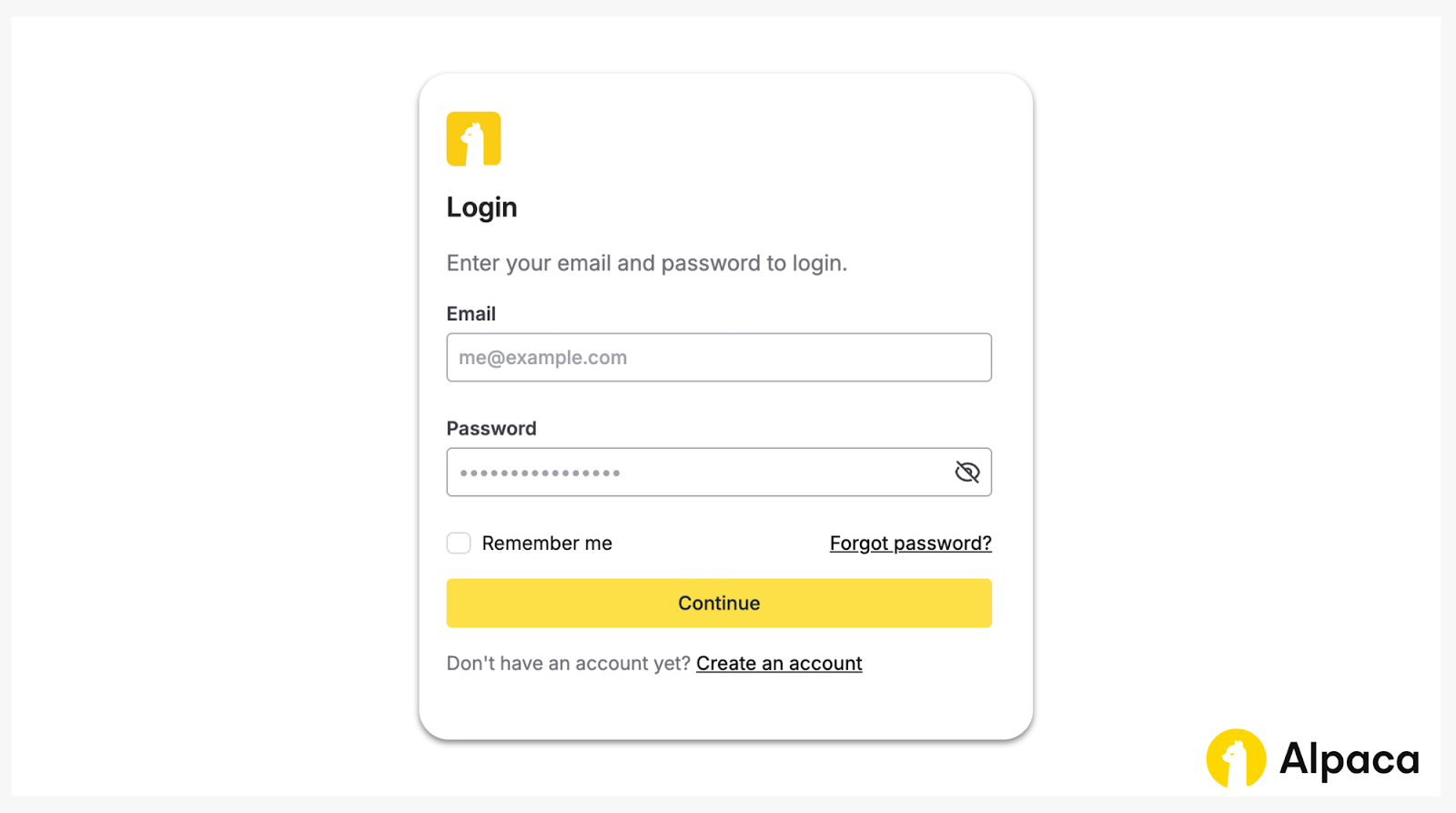
Step 1: Log in to your Alpaca account
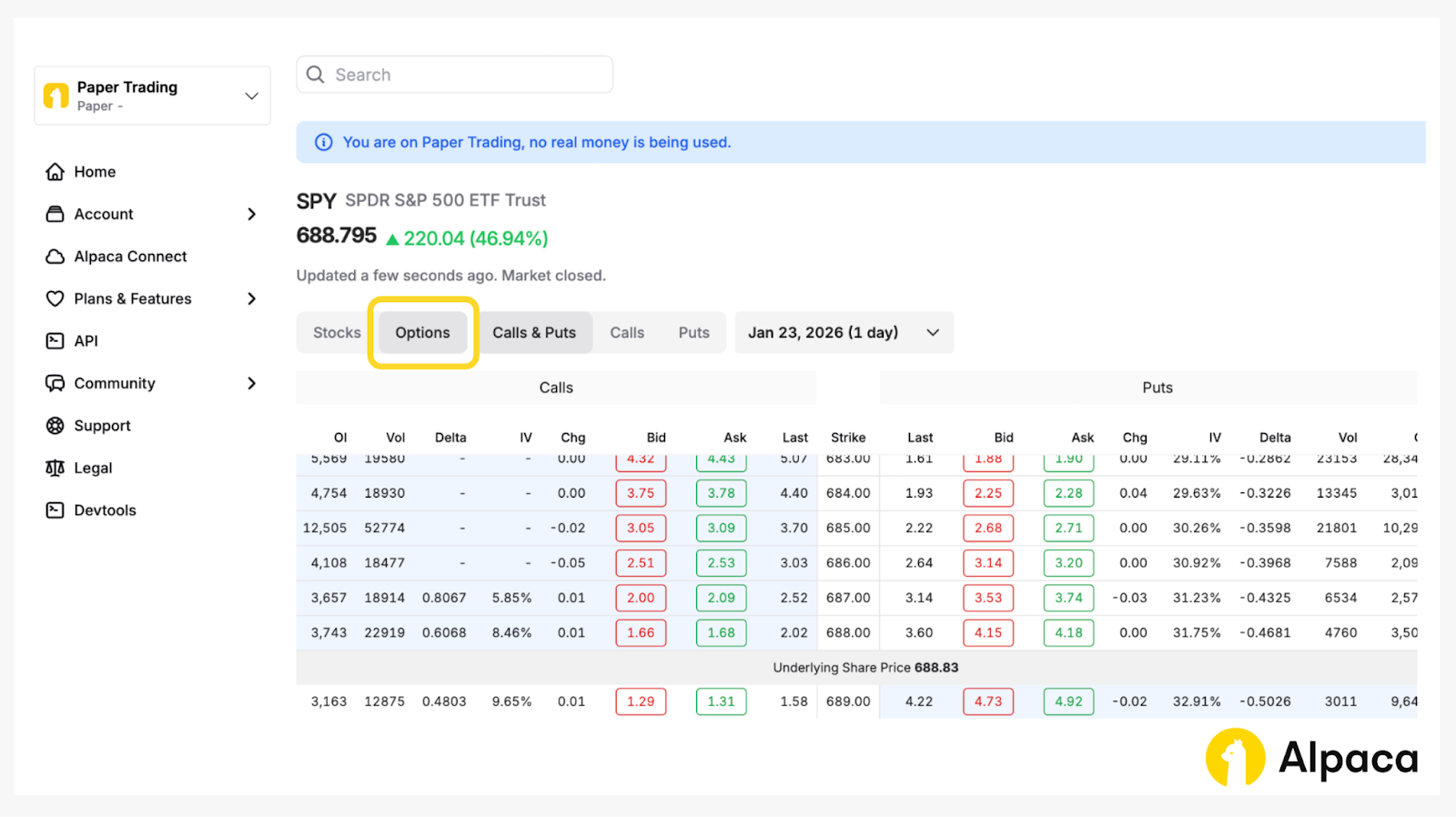
Step 2: Search for the option you want to trade
After searching for the underlying symbol (e.g. “SPY”), click the “Options” button to open the options chain page.
Step 3: Define Order Type and Time-in-Force (TIF)
Define appropriate parameters: Order Type and Time in Force for a GTC order:
- Only
Dayorders are valid for overnight trading (See the API documentation for “24/5 Trading” for details) - Set
Time in Forceto GTC
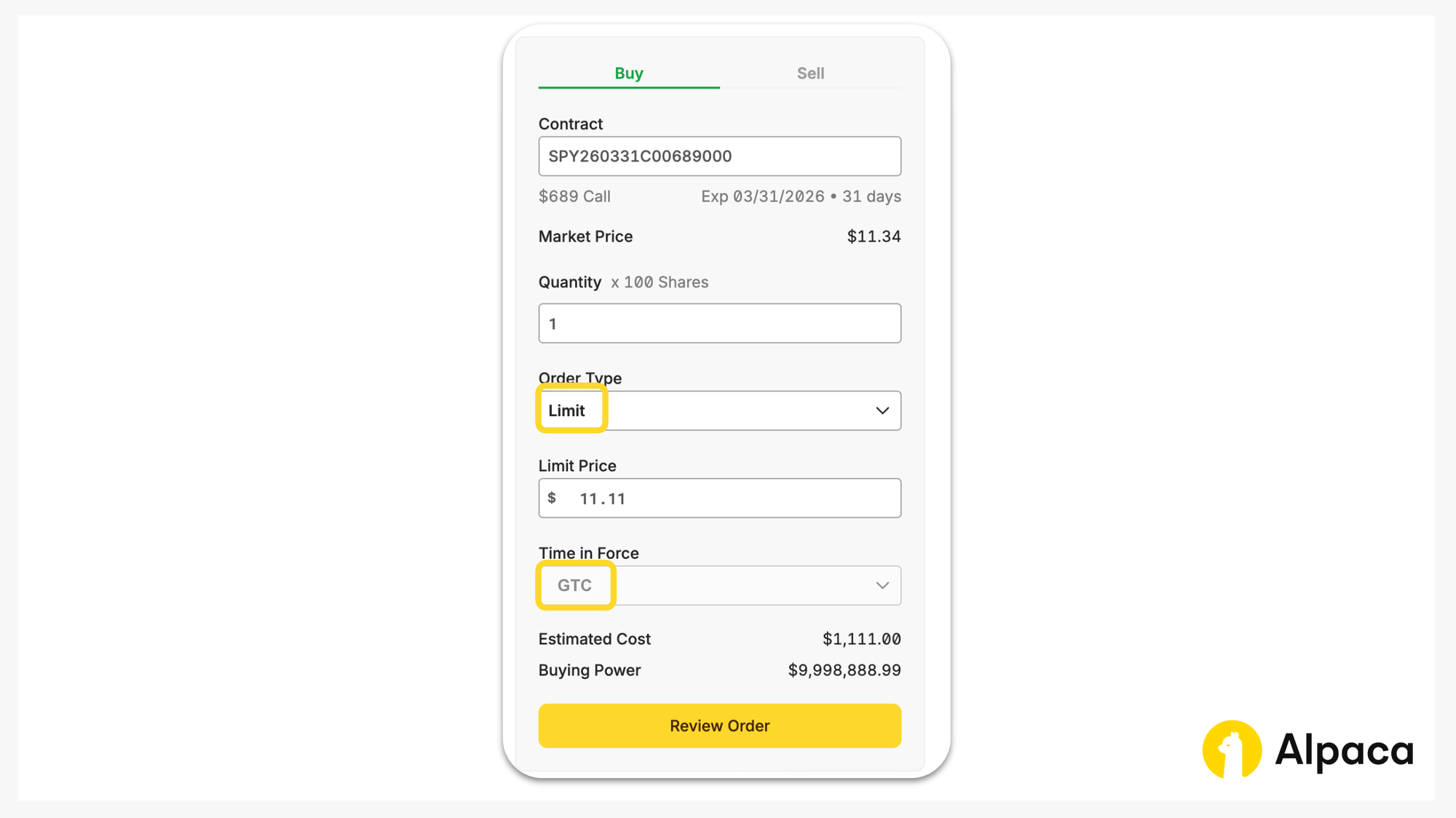
Step 4: Review your order details and submit
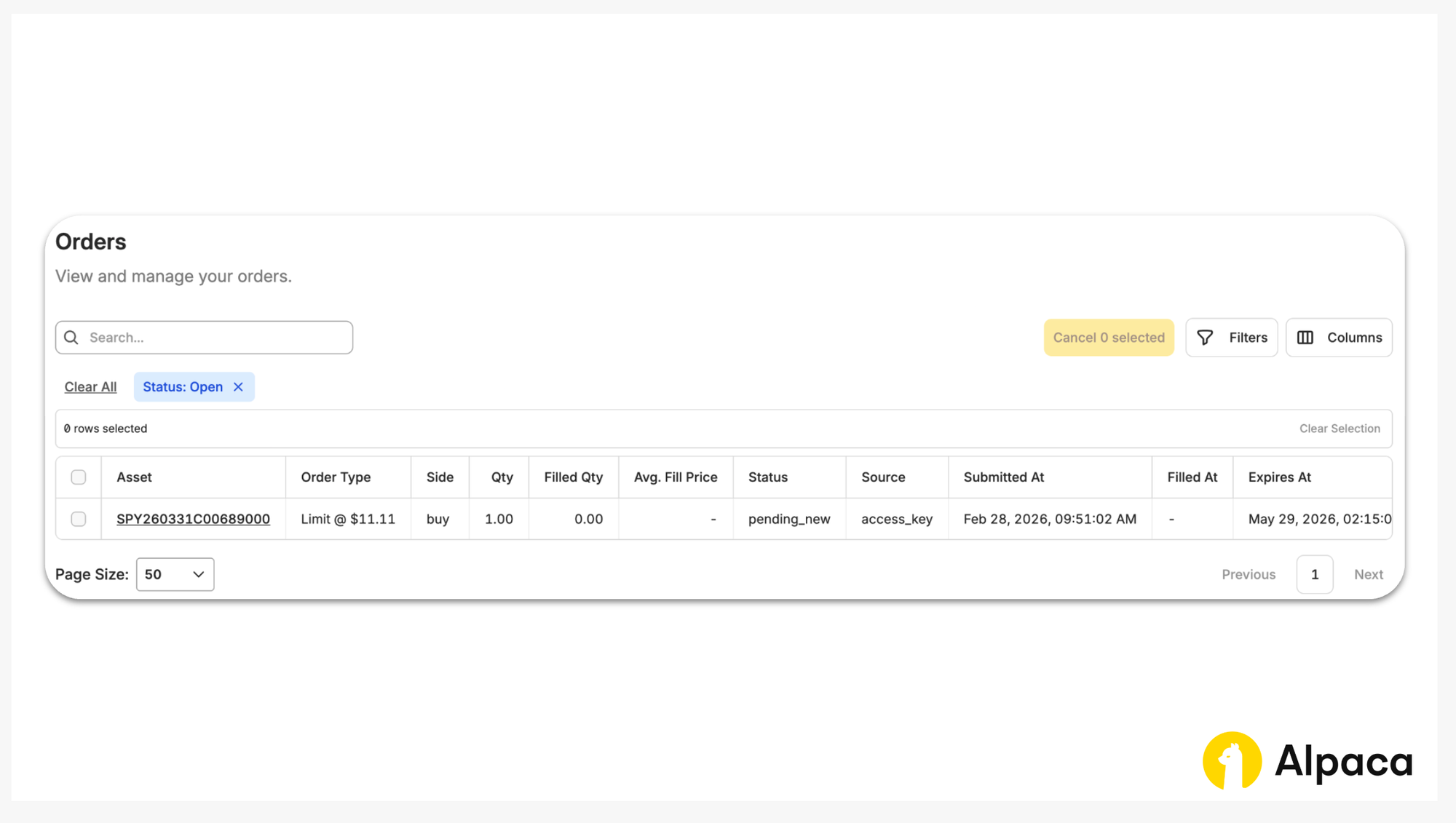
You can monitor fills and open positions in real time on the Portfolio and Activity pages.

Conclusion
With GTC options trading, you can potentially:
- Eliminate the daily re-entry loop
- Reduce the human element
- Have better chance to fill the order
No extra setup required. You can just use your existing API workflow, with minor parameters changes.
If you’d like to learn more about trading algorithmically with Alpaca’s Trading API, explore the resources below:
To understand more about Alpaca's Trading API capabilities, explore the following resources:
- How to Trade Options with Alpaca
- How to Trade an Option Strategy on TradingView with Alpaca
- How to Trade Long Straddle Options Strategy with Alpaca
- How to Trade Wheel Options Strategy with Alpaca
- Backtesting 0DTE Options: Strategy, Setup, & Performance
- Alpaca-py GitHub Page
- Alpaca-py Documentation
- Alpaca's Trading API Reference
Frequently Asked Questions
Which options order types work with GTC?
Limit orders only. Market orders are not supported for GTC options due to potential price volatility between sessions. Significant price changes at the open could result in execution at a price substantially different from the prior session’s close.
Does a GTC order tie up my buying power?
Yes. Submitting a GTC order will reserve the required buying power or margin for that position. The reserved amount remains unavailable for other trades until the order is filled or canceled.
Will my GTC options order fill during extended hours?
No. Options generally only trade during the regular session (9:30 AM to 4:00 PM ET). Your order will stay active in the system overnight, but it shouldn’t actually trigger or fill until the market opens the next day.
What happens if the stock splits or pays a dividend?
Alpaca handles this according to FINRA Rule 5330. For standard cash dividends, your Buy Limit or Sell Stop price is automatically reduced by the dividend amount unless you mark the order "Do Not Reduce" (DNR). Forward splits will adjust your order’s price and quantity to match the new structure, but reverse splits result in the cancellation of all open GTC orders. Note that special dividends typically adjust all orders, even those marked DNR.
Do GTC orders ever expire on their own?
Yes, Alpaca automatically cancels GTC options orders after 90 days. Modifying the order resets this period. Keep in mind that options are time-sensitive instruments, and changes in time to expiration or volatility may affect the suitability of previously set prices.
Can I change the price of a GTC order without canceling it?
Yes. You don't need to delete the order and start over. You can just use the replace_order_by_id function (or the dashboard) to update the limit price while keeping the order in the queue.
*Please note that we are using SPY as an example, and it should not be considered investment advice.
*Options trading is not suitable for all investors due to its inherent high risk, which can potentially result in significant losses. Please read Characteristics and Risks of Standardized Options before investing in options.
Please note that this article is for general informational purposes only and is believed to be accurate as of the posting date but may be subject to change.
Please note that this article is for general informational purposes only and is believed to be accurate as of the posting date but may be subject to change. The examples above are for illustrative purposes only.
All investments involve risk, and the past performance of a security, or financial product does not guarantee future results or returns. There is no guarantee that any investment strategy will achieve its objectives. Please note that diversification does not ensure a profit, or protect against loss. There is always the potential of losing money when you invest in securities, or other financial products. Investors should consider their investment objectives and risks carefully before investing.
The Paper Trading API is offered by AlpacaDB, Inc. and does not require real money or permit a user to transact in real securities in the market. Providing use of the Paper Trading API is not an offer or solicitation to buy or sell securities, securities derivative or futures products of any kind, or any type of trading or investment advice, recommendation or strategy, given or in any manner endorsed by AlpacaDB, Inc. or any AlpacaDB, Inc. affiliate and the information made available through the Paper Trading API is not an offer or solicitation of any kind in any jurisdiction where AlpacaDB, Inc. or any AlpacaDB, Inc. affiliate (collectively, “Alpaca”) is not authorized to do business.
Securities brokerage services are provided by Alpaca Securities LLC (dba "Alpaca Clearing"), member FINRA/SIPC, a wholly-owned subsidiary of AlpacaDB, Inc. Technology and services are offered by AlpacaDB, Inc.
This is not an offer, solicitation of an offer, or advice to buy or sell securities or open a brokerage account in any jurisdiction where Alpaca Securities is not registered or licensed, as applicable.